
How to Set Up Smart Home Lighting Scenes with Alexa or Google Home
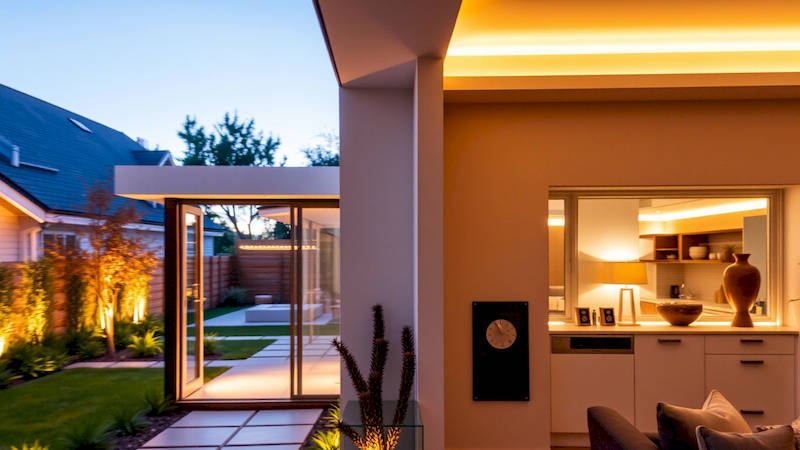
The allure of a smart home isn't just about futuristic convenience; it's about crafting an environment perfectly tailored to your mood and lifestyle. And arguably, no element of a smart home dramatically impacts the atmosphere more than intelligent lighting. Gone are the days of simply flipping a switch. Today, with the integration of voice assistants like Alexa and Google Home, you can orchestrate lighting “scenes” - pre-set configurations designed for specific activities or moods – simplifying your life and enhancing your home environment in ways previously unimaginable. From 'Movie Night' with dimmed lights to 'Wake Up' with a gradual sunrise simulation, the possibilities are vast.
The market for smart home lighting is booming. According to Statista, the smart lighting market is projected to reach $19.69 billion by 2028. This growth isn’t simply driven by novelty; consumers are recognizing the real benefits – energy savings, increased security, and, importantly, enhanced comfort and convenience. Setting up these scenes, however, can initially seem daunting. This guide will demystify the process, walking you through everything you need to know to create captivating and functional lighting scenes using either Alexa or Google Home.
Choosing Your Smart Lighting Ecosystem
Before diving into scene creation, the foundational step is selecting the right smart lighting ecosystem. This means deciding on the brands and types of smart bulbs, switches, and other devices that will work best for your needs and budget. The two major players are, of course, Amazon Alexa and Google Home, but the ecosystem extends far beyond these assistants. Popular bulb manufacturers include Philips Hue, LIFX, Wyze, and Sengled, each offering varying levels of features, color options, and price points. Compatibility is key; ensure your chosen bulbs and switches are compatible with either Alexa or Google Home, depending on which assistant you prefer.
Many devices now advertise “Works with Alexa” or “Works with Google Assistant” – a crucial badge to look for. Consider the protocols they use, too. Wi-Fi-based bulbs are easy to set up, connecting directly to your home network, but can potentially strain bandwidth if you have numerous devices. Zigbee and Z-Wave are mesh network protocols that require a hub (like the Philips Hue Bridge or a SmartThings hub) but offer greater reliability and less interference. Ultimately, the ‘best’ ecosystem depends on your existing smart home setup, technical expertise, and personal preferences.
Preparing Your Smart Lights for Scene Creation
Once you've chosen your smart lighting devices, the next step is getting them properly connected and configured. This involves installing the bulbs or switches, downloading the manufacturer’s app (e.g., the Philips Hue app, LIFX app), and pairing the devices with your Wi-Fi network or hub. Crucially, you must also link your smart lighting accounts to your chosen voice assistant – Alexa or Google Home – through their respective apps.
This process typically involves enabling the corresponding ‘skill’ (for Alexa) or ‘service’ (for Google Home) and then authorizing access to your smart lighting account. Once linked, the voice assistant will discover your new devices. You'll then need to assign descriptive names to each light (e.g., 'Living Room Lamp,' 'Kitchen Overhead') within the Alexa or Google Home app. This is critical for easy voice control and accurate scene setup. Take the time to be thoughtful about naming; avoid vague terms like 'Light 1' and opt for clarity and specificity.
Creating Scenes with Alexa
Alexa offers a straightforward interface for creating lighting scenes. Open the Alexa app, navigate to the “Routines” section, and tap the "+" button to create a new routine. In the “When this happens” section, you can choose a trigger – either a voice command (e.g., "Alexa, movie time") or a scheduled time. The core of scene creation lies in the “Add action” section. Here, you can select “Smart Home” and then “Lights,” allowing you to control individual lights or groups of lights.
You can adjust brightness levels, color temperatures (warm or cool white), and even colors for each light within the scene. For example, a ‘Reading’ scene might set your living room lamp to 80% brightness with a warm white hue, while a ‘Party’ scene could cycle through a range of vibrant colors. Alexa also allows for more complex routines, incorporating music playback, announcements, or control of other smart home devices. Remember to save your routine, giving it a descriptive name (e.g., ‘Dinner Party,’ ‘Goodnight’). This ensures you can easily activate it with a simple voice command.
Crafting Scenes with Google Home
Google Home's approach to scene creation, referred to as “Routines,” shares similarities with Alexa's. Open the Google Home app, navigate to “Routines”, and tap the "+" button to begin. As with Alexa, you define a trigger – either a voice command ("Hey Google, good morning") or a scheduled time. The action selection process is slightly different; you’ll add actions by tapping the "+" button under the "Add action" section. Here you can choose “Adjust home devices” and select your desired lights.
Google Home offers granular control over lighting parameters: brightness, color, and color temperature. You can create complex routines combining lighting adjustments with other actions, such as playing news briefings, reading your calendar, or adjusting smart thermostat settings. Google assistant also learns based on your interactions. It is a benefit to train it to associate certain brand names with your lights. For example, saying "Hey Google, dim the Philips Hue lights in the living room", can help it learn the specific Philips Hue bulb adjustments. Finally, remember to assign a descriptive name to each routine for easy activation.
Troubleshooting Common Scene Setup Issues
Despite the relative ease of setup, occasional hiccups can occur. A common issue is lights failing to respond to scene commands. This is often due to connectivity problems. Ensure your Wi-Fi network is stable and that your smart lights are within range of your router or hub. Check the connection status of your devices within their respective apps. Another frequent problem is naming conflicts. If you have multiple devices with similar names, Alexa or Google Home might confuse them. Be sure to use unique and descriptive names for each light.
If a scene isn't functioning as expected, double-check the individual light settings within the routine. A single incorrect setting can disrupt the entire scene. Finally, remember to periodically update the firmware of your smart lights and voice assistant devices. Updates often include bug fixes and performance improvements. "A surprising number of issues are solved simply by unplugging the router and smart hub, waiting 30 seconds, and plugging them back in," notes smart home consultant David Miller. “It’s a simple reset that can often resolve connectivity glitches.”
Enhancing Your Scenes with Advanced Features
Once you've mastered the basics, you can explore more advanced features to further customize your lighting scenes. Both Alexa and Google Home support color-changing bulbs, allowing you to create dynamic and immersive scenes. Experiment with different color palettes to evoke specific moods. You can also integrate your lighting scenes with other smart home devices. For example, you could create a 'Goodnight' scene that turns off all the lights, locks the doors, and sets the thermostat to a comfortable sleeping temperature.
Another powerful feature is geofencing. This allows you to trigger lighting scenes based on your location. For example, you could set your porch lights to automatically turn on when you approach home after dark. Finally, explore IFTTT (If This Then That) integration to create even more complex and customized routines. IFTTT allows you to connect your smart lighting to a wide range of other web services and devices, opening up endless possibilities for automation.
Conclusion: Illuminating Your Life with Smart Scenes
Setting up smart home lighting scenes with Alexa or Google Home is a powerful way to elevate your living experience. By carefully selecting your devices, meticulously configuring your lights, and creatively crafting scenes tailored to your lifestyle, you can unlock a world of convenience, comfort, and ambiance. Remember to prioritize clear naming conventions, troubleshoot connectivity issues proactively, and explore advanced features to maximize the potential of your smart lighting system.
The initial setup requires a bit of effort, but the long-term benefits – from enhanced security and energy savings to simply creating the perfect mood for any occasion – are well worth the investment. Start small, experiment with different scenes, and don’t be afraid to iterate until you find the perfect lighting configuration for your home and your life. The key takeaway is to view smart lighting not just as a technological upgrade, but as a tool to curate your perfect daily environment.
Deja una respuesta