
Setting Up a Dual Monitor Station Without Sacrificing Space
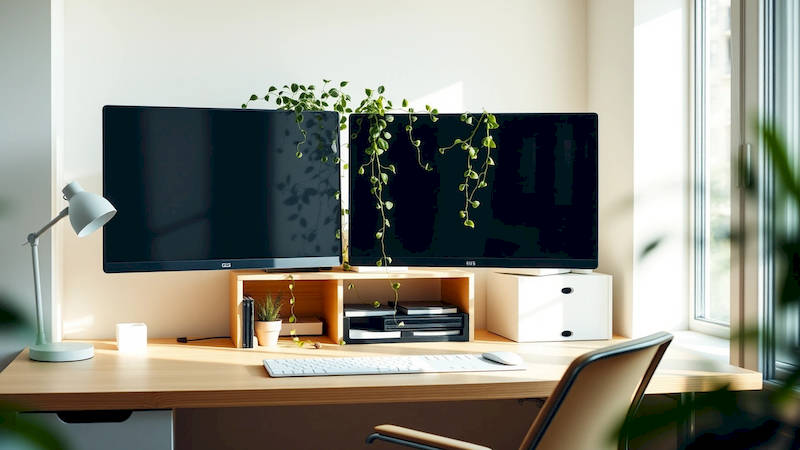
The rise of remote work and the increasing demands of modern digital life have made the dual monitor setup a staple for many professionals and serious hobbyists. The productivity gains are undeniable – studies suggest a potential increase of up to 30-50% when using a dual monitor configuration. However, the benefit of expanded screen real estate often comes with the challenge of accommodating the extra hardware, particularly in smaller home offices or limited workspaces. Cramped setups can negate the productivity benefits, leading to discomfort and even hindering workflow rather than enhancing it. This article will delve into the intricacies of establishing an efficient and comfortable dual monitor station, focusing on space-saving strategies and optimized ergonomics, ensuring you reap the rewards of enhanced visual capacity without feeling overwhelmed by clutter.
The key isn't simply adding a second screen; it’s about integrating it thoughtfully into your existing workspace. Ignoring ergonomic principles or simply plonking a monitor beside your primary display can lead to neck strain, eye fatigue, and a less-than-ideal experience. Therefore, we’ll move beyond the basic connection and explore considerations like monitor arms, desk selection, cable management, and even software solutions to help you manage multiple windows efficiently. This guide is designed for anyone, from apartment dwellers to those with dedicated home offices, looking to unlock the full potential of a dual-monitor setup without sacrificing valuable space.
- Assessing Your Space and Defining Your Needs
- Leveraging Monitor Arms for Maximum Space Efficiency
- Desk Selection: Choosing the Right Foundation
- Mastering Cable Management: The Key to a Clean Setup
- Software Solutions for Multi-Monitor Workflow
- Conclusion: A Seamless and Productive Dual Monitor Experience
Assessing Your Space and Defining Your Needs
Before rushing out to purchase a second monitor, a thorough assessment of your current workspace is critical. This isn’t just about measuring the available desk surface, but also considering the overall layout and your typical workflows. What tasks will you be using the second monitor for? Will it be dedicated to communication apps (like Slack or email), research, or running applications alongside your primary workflow? Understanding your primary use case will dictate the necessary screen size, resolution, and optimal positioning. A graphic designer, for example, will have drastically different requirements than a writer or programmer.
Take stock of the existing clutter. Often, simply decluttering can free up surprising amounts of space. Get rid of unnecessary items, consolidate supplies, and consider utilizing vertical storage solutions. Equally important is considering lighting. Dual monitors can create glare, so evaluate the position of windows and artificial light sources and plan accordingly. “Poor lighting is a common culprit for eye strain, and it’s especially problematic with dual monitors,” states Dr. James L. Sheedy, an optometrist specializing in digital eye strain. Addressing these factors upfront will prevent headaches and re-arrangements later on.
Finally, consider your budget. Dual monitor setups aren't limited to expensive equipment. While high-end monitors offer superior image quality and features, perfectly adequate options are available at various price points. Factor in the cost of monitor arms, cable management solutions, and potentially a new desk if necessary. Establishing a realistic budget will guide your purchasing decisions and ensure a setup that fits your financial constraints.
Leveraging Monitor Arms for Maximum Space Efficiency
Traditional monitor stands consume significant desk space, and simply placing a second monitor beside your existing one can quickly become cramped. This is where monitor arms are a game changer. These articulating arms attach to your desk and allow you to position your monitors in a truly customizable manner, freeing up valuable desk real estate. They come in various styles, including single, dual, and even triple monitor configurations, with different weight capacities and adjustability options.
Choosing the right monitor arm depends on the size and weight of your monitors. Ensure the arm’s VESA compatibility matches your display and that it can support the weight without wobbling. Look for arms that offer full articulation – tilt, swivel, and rotation – to achieve the most ergonomic setup. Beyond space saving, consider the health benefits. Proper monitor positioning, facilitated by a good monitor arm, encourages better posture and reduces strain on your neck, back and eyes.
Installation is typically straightforward, but it's important to follow the manufacturer’s instructions carefully. Many monitor arms use a clamp system that attaches to the desk edge, while others require a grommet hole. Once installed, you can fine-tune the position of each monitor to create a comfortable and efficient viewing experience. For example, if you frequently switch between tasks, positioning the monitors angled slightly inward can minimize neck rotation and improve visual flow.
Desk Selection: Choosing the Right Foundation
The desk itself plays a pivotal role in a successful dual monitor setup. A desk that's too small will inherently limit your options, while a poorly designed desk can contribute to clutter and discomfort. Consider desks specifically designed for multi-monitor configurations, which often feature wider surfaces and built-in cable management solutions. Standing desks are another excellent option, as they promote better posture and allow you to alternate between sitting and standing throughout the day.
When selecting a desk, consider the depth of the surface. Shallow desks can force you to sit too close to the monitors, increasing eye strain. A depth of at least 24 inches is generally recommended for comfortable viewing. Look for desks with features like cable grommets and trays to help keep cables organized and out of sight. Another growing trend is the corner desk. These utilize often wasted corner space to provide a larger workspace ideal for multiple monitors and associated accessories.
Don’t overlook the material and build quality. A sturdy desk is essential for supporting the weight of two monitors and other equipment. Solid wood or metal frames are generally more durable than particleboard. A well-chosen desk isn't just a surface; it's the foundation of your entire workstation, impacting your comfort, productivity and overall well-being.
Mastering Cable Management: The Key to a Clean Setup
A tangle of cables is not only unsightly but can also be a safety hazard and a significant source of frustration. Effective cable management is crucial for maintaining a clean and organized dual monitor setup. Begin by utilizing cable ties, sleeves, and clamps to bundle and secure cables together. Route cables behind the monitors and along the back of the desk, keeping them hidden from view.
Consider investing in a cable management box or tray to conceal power strips and excess cable length. These boxes not only improve aesthetics but also protect against dust and accidental disconnection. Velcro straps are incredibly useful for repeatedly rearranging cables. Don’t be afraid to invest in slightly longer cables than you think you need to allow for flexibility and easier routing. “A clean workspace is a clear mind,” states Marie Kondo, renowned organizing consultant. While applying this principle to a tech setup might seem unusual, the sentiment rings true – minimizing visual clutter can significantly reduce stress and improve focus.
Finally, label your cables! This invaluable step will save you countless hours of frustration when you need to disconnect or reconnect devices. A simple label maker or even a permanent marker can make a world of difference.
Software Solutions for Multi-Monitor Workflow
While hardware is essential, software can also dramatically enhance your dual monitor experience. Operating systems like Windows and macOS offer built-in features for managing multiple displays, but third-party applications can offer even greater flexibility and control. Tools like DisplayFusion and UltraMon allow you to create custom monitor profiles, manage window placement with hotkeys, and even create virtual desktops. These virtual desktops allow you to group related applications together, reducing clutter and streamlining your workflow.
Consider applications tailored to your specific needs. Programmers, for example, might benefit from tools that allow them to drag code windows between monitors seamlessly. Designers might find applications that enable precise color calibration across both displays. “The key is to find a workflow that maximizes your efficiency and minimizes distractions,” explains productivity expert, Cal Newport. Software solutions are often the linchpin to unlocking that optimal workflow.
Conclusion: A Seamless and Productive Dual Monitor Experience
Setting up a dual monitor station without sacrificing space requires careful planning and execution. By assessing your needs, leveraging monitor arms, choosing the right desk, mastering cable management, and utilizing software solutions, you can create a workspace that enhances your productivity and comfort. The investment in both time and resources will pay dividends in the form of increased efficiency, reduced strain, and a more enjoyable work experience.
Remember the key takeaways: prioritize ergonomics, embrace vertical space, and declutter ruthlessly. Don’t be afraid to experiment with different configurations until you find what works best for you. The goal isn’t just to add another screen; it’s to create a seamless and integrated workstation that empowers you to achieve more. Your next step? Start with that assessment – truly understand your workflow and space constraints before making any purchases. A little planning goes a long way toward building a truly productive and comfortable dual-monitor setup.
Deja una respuesta