
Step-by-step guide to linking your smart thermostat with voice-activated assistants
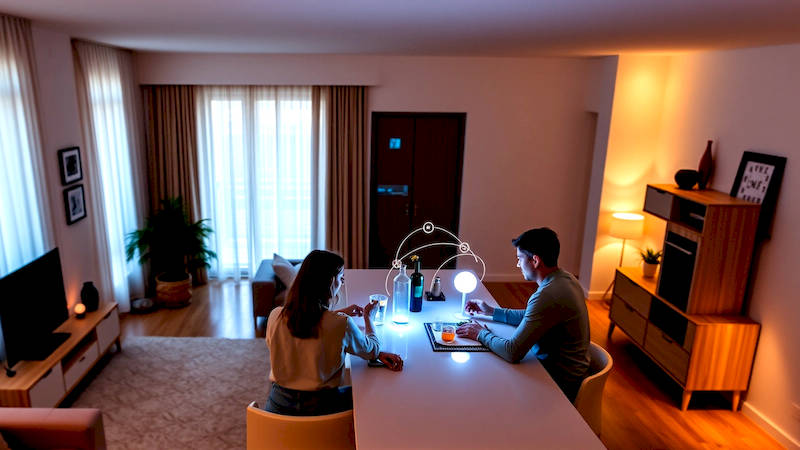
The rise of the smart home has fundamentally altered how we interact with our living spaces, promising increased convenience, energy efficiency, and control. At the heart of this transformation lie voice-activated assistants like Amazon Alexa, Google Assistant, and Apple Siri, acting as central hubs for controlling a growing ecosystem of connected devices. Among these, the smart thermostat stands out as a particularly impactful integration, offering not just hands-free temperature adjustments, but the potential for significant energy savings and a more comfortable home environment. This guide breaks down the process of connecting your smart thermostat to your preferred voice assistant, ensuring a smooth and rewarding experience.
For many homeowners, the appeal of a smart thermostat extends beyond simple convenience. According to a recent study by Parks Associates, households with smart thermostats save an average of $131 per year on energy bills. Furthermore, the ability to remotely monitor and adjust temperature settings offers peace of mind, particularly when traveling or managing a vacation home. However, realizing these benefits requires a successful integration with a voice assistant, effectively unlocking the full potential of your smart home investment.
This guide is designed to be comprehensive, regardless of your technical expertise. We'll cover compatibility considerations, detailed step-by-step instructions for each major voice assistant, troubleshooting tips, and explore some advanced features you can unlock post-integration. Whether you’re a seasoned smart home enthusiast or just starting, this resource will empower you to seamlessly control your home climate with the power of your voice.
- Assessing Compatibility: Thermostat and Voice Assistant Pairing
- Linking with Amazon Alexa: A Step-by-Step Guide
- Connecting to Google Assistant: Harnessing the Power of “Hey Google”
- Apple HomeKit and Smart Thermostats: A Focus on Privacy and Seamless Integration
- Troubleshooting Common Connection Issues
- Unlocking Advanced Features: Beyond Basic Temperature Control
- Conclusion: Embracing a Smarter, More Comfortable Home
Assessing Compatibility: Thermostat and Voice Assistant Pairing
Before diving into the process, it’s crucial to verify that your smart thermostat and voice assistant are compatible. Most mainstream smart thermostats – including those from Nest, Ecobee, Honeywell Home, and others – offer integrations with Alexa, Google Assistant, and often Apple HomeKit. However, feature support can vary. For instance, an older thermostat model might connect to Alexa for basic temperature control but lack integration with Google Assistant's routines or advanced scheduling features.
Checking compatibility is straightforward. Start by consulting the documentation for both your thermostat and your voice assistant. Manufacturers typically maintain lists of supported devices on their websites. A quick search like "[Thermostat Model] Alexa Compatibility" or "[Thermostat Model] Google Assistant Integration" will usually yield the necessary information. Furthermore, the apps for these systems often display compatible devices during the setup process, guiding you towards a smooth connection. The compatibility also doesn’t just mean it can connect, but also how it connects – some require a “skill” or “action” to be enabled, and understanding this is important.
It is also worth noting that the degree of control offered varies. Some integrations might only allow you to adjust the temperature, while others provide access to features like changing modes (heat, cool, auto), setting fan speeds, or viewing energy usage reports. Understanding these limitations upfront will prevent frustration and help you select the best solution for your needs.
Linking with Amazon Alexa: A Step-by-Step Guide
Amazon Alexa is a dominant force in the voice assistant market, and integrating your smart thermostat is a relatively simple process. First, ensure your thermostat is properly installed and connected to your home's Wi-Fi network and that you have a functioning Amazon Echo device. Open the Alexa app on your smartphone or tablet. Navigate to "More" in the bottom right corner, then select "Skills & Games."
In the Skills & Games menu, search for the skill corresponding to your thermostat manufacturer (e.g., "Nest," "Ecobee," "Honeywell"). Select the relevant skill and tap "Enable to Use." You'll then be prompted to link your thermostat account to your Amazon account. This typically involves logging into your thermostat account using your username and password. Once linked, Alexa will discover your thermostat, and you'll be asked to assign a name to it (e.g., "Living Room Thermostat"). This name is what you'll use in your voice commands. After completion, you can then try commands like "Alexa, set the living room thermostat to 72 degrees," or "Alexa, what's the temperature in the living room?"
Don’t forget to explore Alexa Routines! You can create routines that combine thermostat adjustments with other smart home actions. For example, a “Goodnight” routine could turn off the lights, lower the thermostat, and lock the doors with a single voice command.
Connecting to Google Assistant: Harnessing the Power of “Hey Google”
The process of integrating your smart thermostat with Google Assistant is similar to Alexa. You'll need a Google Home device or a smartphone with the Google Assistant app. Open the Google Home app and tap the "+" icon in the top left corner. Select "Set up device," then "Works with Google."
A list of compatible services will appear. Search for your thermostat manufacturer (e.g., "Nest," "Ecobee," "Honeywell") and select it. You'll be redirected to a login page for your thermostat account. Enter your credentials to link the accounts. Google Assistant will then discover your thermostat and prompt you to assign it a room. This step is crucial for accurate voice control; ensuring the thermostat is assigned to the correct room will allow you to say things like "Hey Google, set the bedroom thermostat to 68 degrees."
One key advantage of Google Assistant is its ability to learn your preferences over time. Google Assistant’s “Learning Thermostat” feature, for instance, automatically adjusts the temperature based on your routines and habits, maximizing comfort and energy savings.
Apple HomeKit and Smart Thermostats: A Focus on Privacy and Seamless Integration
Integrating your smart thermostat with Apple HomeKit provides a particularly streamlined and privacy-focused experience. However, it’s important to note that not all smart thermostats are compatible with HomeKit. Look for thermostats explicitly labeled as “HomeKit enabled.” To add the thermostat, open the Apple Home app on your iPhone, iPad, or Mac. Tap the "+" icon in the top right corner and select "Add Accessory."
Follow the on-screen instructions, which will typically involve scanning a HomeKit setup code found on your thermostat or in its documentation. Once added, you'll be able to control your thermostat using Siri voice commands ("Hey Siri, set the temperature to 70 degrees") or through the Home app interface. Apple HomeKit offers greater control over data privacy and security compared to other platforms.
Furthermore, HomeKit’s Automation features are exceptionally powerful, allowing you to create complex, time-based or location-based triggers for your thermostat.
Troubleshooting Common Connection Issues
Despite the simplified setup processes, occasional connectivity issues can arise. One common problem is Wi-Fi interference. Ensure your thermostat and Google Home/Echo device are connected to a stable 2.4 GHz Wi-Fi network, as this frequency typically offers better range. Another frequent issue is incorrect account linking. Double-check that you are using the correct username and password for your thermostat account.
If the voice assistant is unable to discover your thermostat, try restarting both devices. Unplugging them for 30 seconds and then plugging them back in can often resolve temporary glitches. It is also important to check that the thermostat skill or action is enabled within the Alexa or Google Home app. Finally, firmware updates on both the thermostat and the voice assistant can resolve compatibility issues.
Unlocking Advanced Features: Beyond Basic Temperature Control
Once your smart thermostat is connected to your voice assistant, explore the available advanced features. Many thermostats support geofencing, which automatically adjusts the temperature based on your location. Some offer integration with weather forecasts, proactively adjusting settings to optimize comfort and energy savings.
Delve into the routines or automation features within each platform. For example, you can create an Alexa Routine that automatically lowers the temperature when you say "Alexa, goodnight" or a Google Assistant Routine that raises the temperature when you leave for work. These features maximize the benefits of your smart home investment, providing a truly personalized and convenient experience.
Conclusion: Embracing a Smarter, More Comfortable Home
Successfully linking your smart thermostat with a voice-activated assistant is a significant step towards creating a truly intelligent home. From the potential for substantial energy savings to the sheer convenience of hands-free control, the benefits are undeniable. Remember to prioritize compatibility, carefully follow the step-by-step instructions provided for your specific thermostat and voice assistant, and don’t hesitate to troubleshoot common issues.
The key takeaways are to verify compatibility before purchasing, understand the nuances of each voice assistant's integration process, and explore the advanced features to fully unlock the potential of your smart thermostat. As the smart home landscape continues to evolve, integrating devices like smart thermostats will become increasingly crucial for maximizing comfort, efficiency, and control. Take the plunge and experience the future of home climate management – your comfort (and your wallet) will thank you.
Deja una respuesta